
Create a Blog Post
To create a new post for your blog, use the New Post button at the top of the blog itself.

Your blog post has a title and a content area. The title should generally be short - no more than a sentence long or so. Just like the headline of a newspaper article.
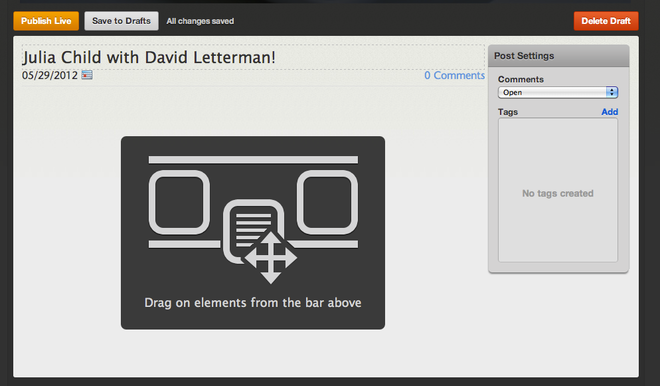
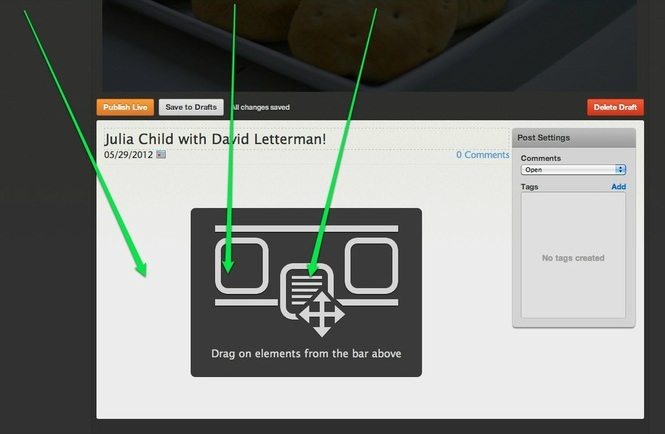
Your blog post has a title and a content area. The title should generally be short - no more than a sentence long or so. Just like the headline of a newspaper article.
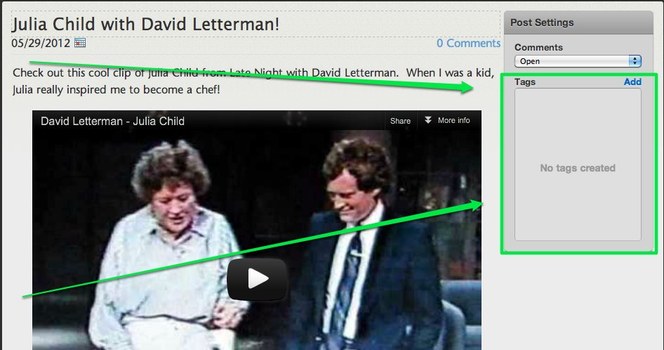
Once you've added your content you can categorize the post using Tags - these tagged categories will appear on your sidebar, making it easier for visitors to your blog to find posts that cover certain topics. Categories can be whatever you like and it isn't necessary to use them. Learn more about Tags and Categories here.
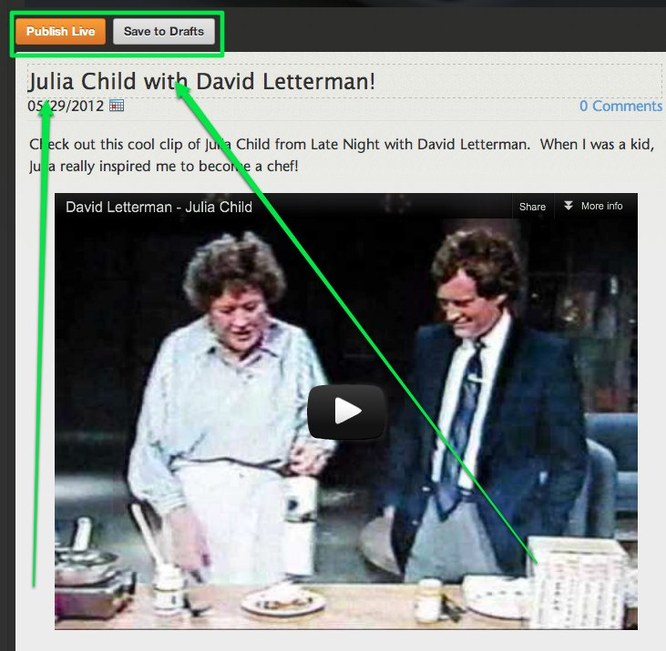
Now you can Publish the post to your live site (which will make it instantly available) or Save to Drafts to edit / publish it later.
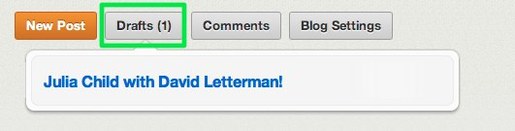
If you save the post as a draft, it'll be accessible to you through a drafts area at the top of the blog page from within the editor (along with any other drafts you've saved). Just click the link to the post from this drafts area to edit it further and save / Publish.
Every new post you Publish will appear at the very top of the page, pushing older posts further down the page. After you've added ten posts to the page, older posts will be moved off the main page to easily accessible archive pages.
Published posts are also sent out to your RSS feed.
Published posts are also sent out to your RSS feed.