
Add a Map to Your Site
If your business or organization has offices that site visitors can visit, it's helpful to include a map to that location to your site. And we have a built-in Google Maps element that helps you do just that.
Start by dragging the Maps element to a page on your site. It's under the Basic category of elements.
Start by dragging the Maps element to a page on your site. It's under the Basic category of elements.
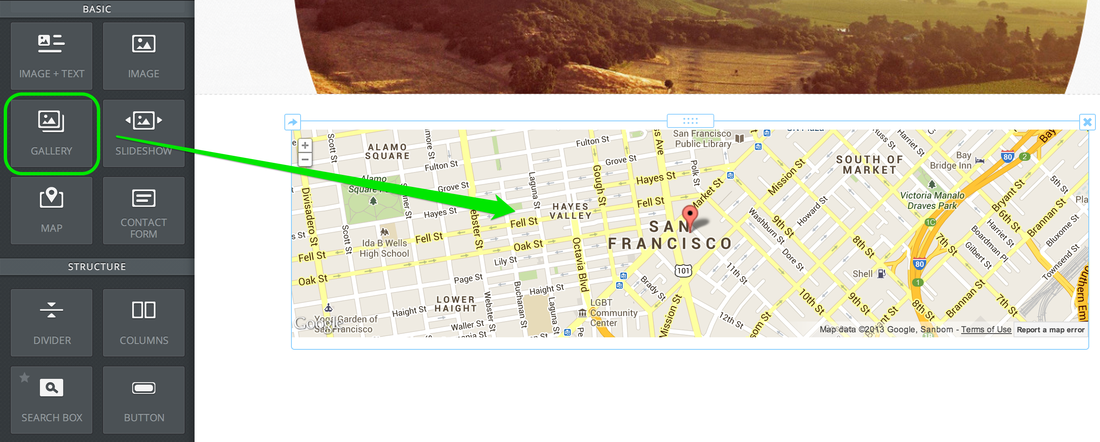
The map displays a small part of central San Francisco by default.
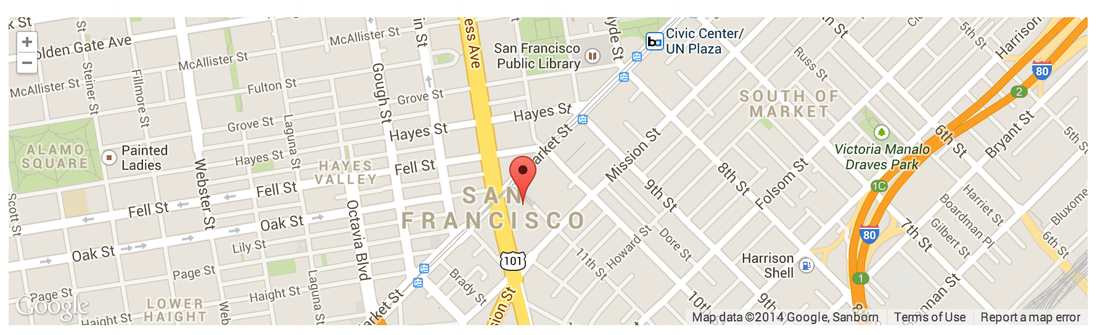
Click on your map to open up the toolbox. You can make a number of changes from here.
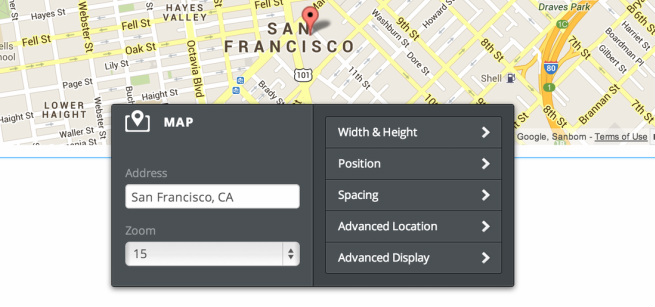
The most important thing to change (unless you happen to be sitting exactly at the corner of Van Ness Avenue and Market Street in San Francisco) is the address. Enter your own address as Street Address, City, Country, like so:
48 Hoxton Square, London, UK
48 Hoxton Square, London, UK
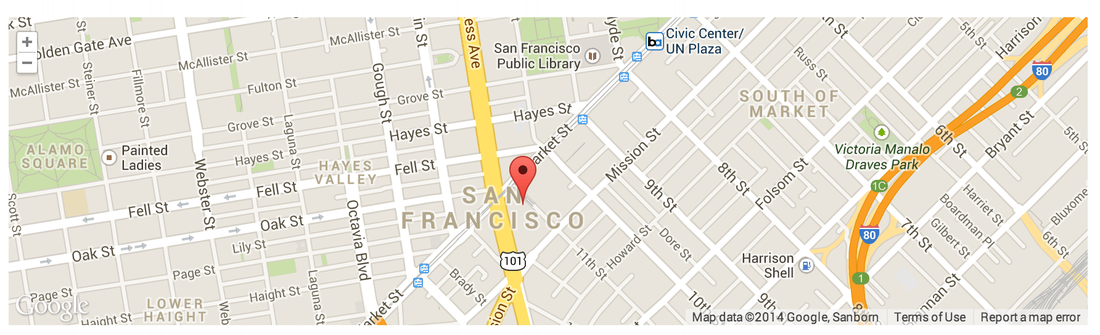
This will update the map to the address you've entered.
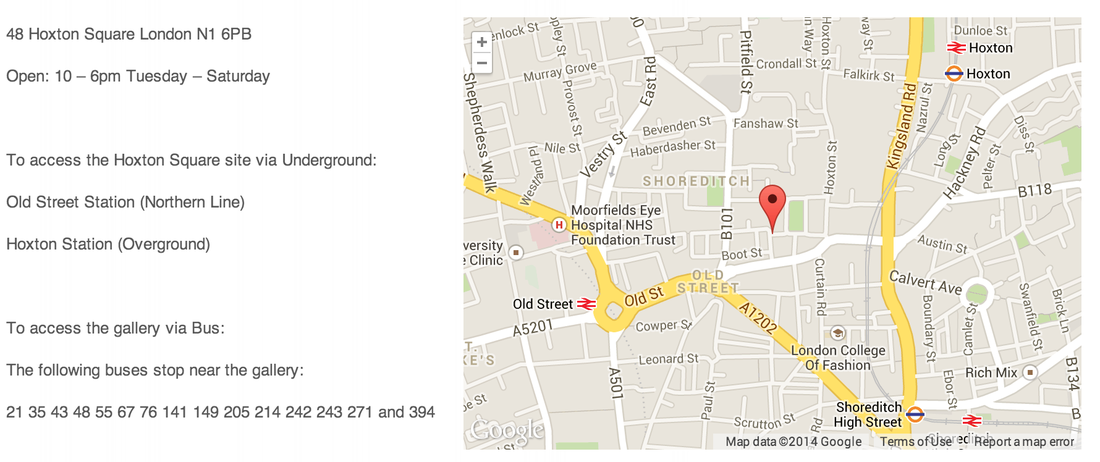
If you place a map inside the columns element, it will automatically adjust to the width of the column you place it in. This can be useful for writing directions directly next to the map.
If you place a map inside the columns element, it will automatically adjust to the width of the column you place it in. This can be useful for writing directions directly next to the map.
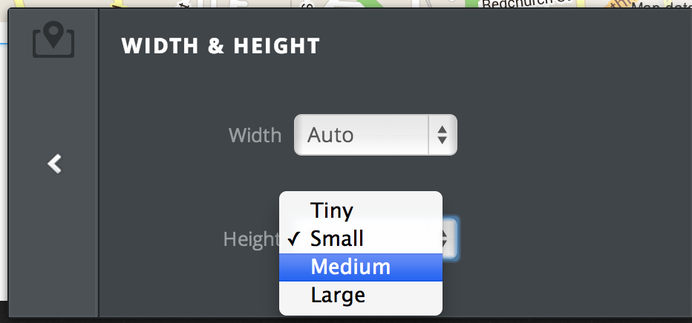
And you can adjust the height of the map using the Width & Height option in the toolbox.
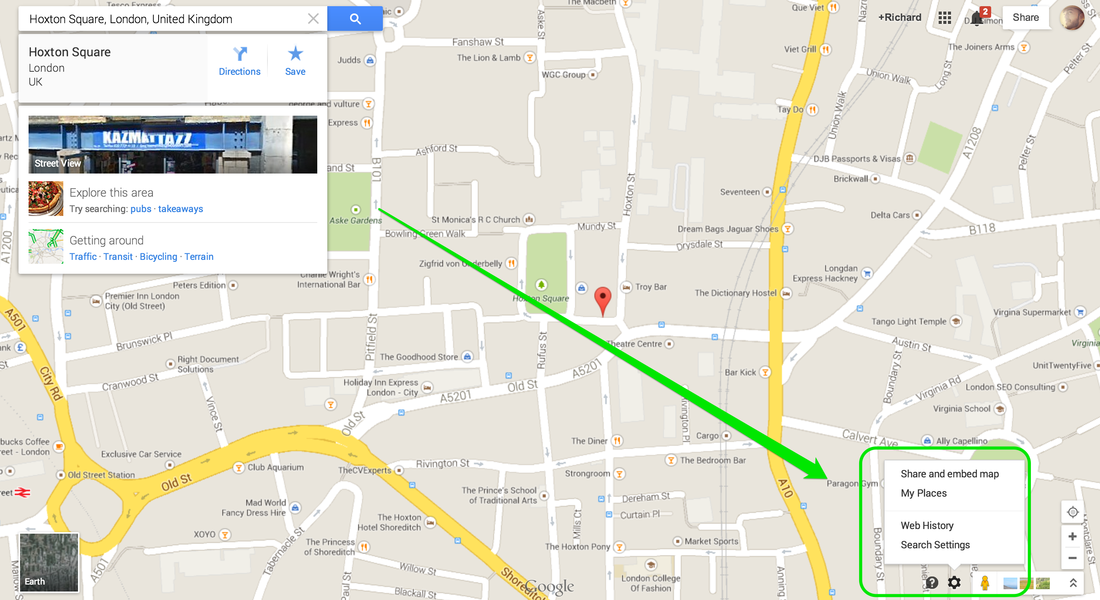
If you feel at all limited by our built-in Maps element, you're also more than welcome to embed a map directly from maps.google.com (or a similar mapping tool). Create the map in Google, click the Option link in the lower right, and choose the "Share and embed" map option.
Select the "Embed map" tab and copy the code they provide there.
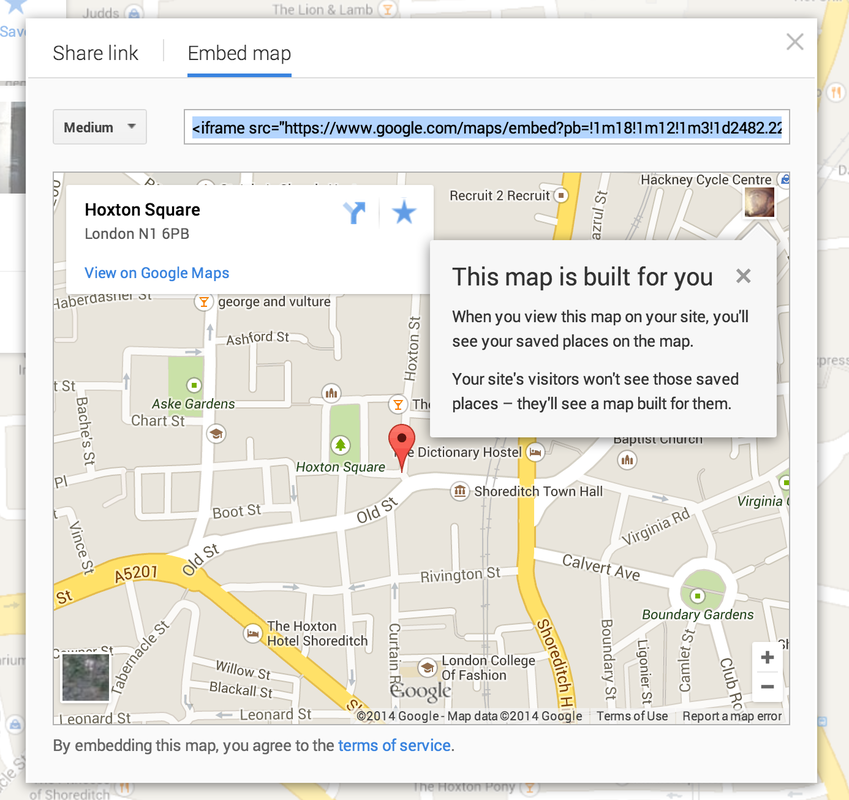
Then paste this code to your site using our Embed Code Element. Your map will show up as soon as you click out of the element.